ERPNext v.13 on Digital Ocean's Ubuntu 20.04
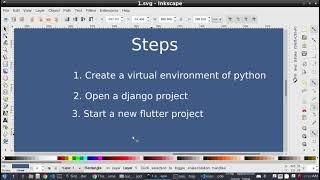
Steps
Create sudo user first. Thanks to Digital Ocean's tutorial by Lyn Muldrow.
https://www.digitalocean.com/community/tutorials/how-to-create-a-new-sudo-enabled-user-on-ubuntu-20-04-quickstart
Mostly, my video follows the topic in this thread. Big thank you to Damaso Sanoja@ Digital Ocean community
https://www.digitalocean.com/community/tutorials/how-to-install-an-erpnext-stack-on-ubuntu-20-04
---- Before you begin ----
Prepare the following items
- IP Address and domain name of your server
- Ubuntu 20.04 Initial settings
- 5 set of passwords
- 1 super username (We are not using a 'root' user)
- 1 erpnext first username (it is your email address)
- Your business Logo (Square shapre, not smaller than 100x 100 px)
- Business name and
- Financial year begin date
It is a good idea to create a text file and copy the below details. Then fill it with your parameter value.
---- Start ----
IP Address:
Domain name:
Ubuntu 20.04 Root
Password:
Sudo user:
Password:
MariaDB Super Admin User
Database and user name: (tips - use the sudo user)
Password:
**** important *****
When you copy the script here, you need to change the version from 12 to 13
bench init /home/amadeus/frappe-bench --frappe-path https://github.com/frappe/frappe --frappe-branch version-13 --python python3
bench get-app erpnext https://github.com/frappe/erpnext --branch version-13
ERPNext Admin Password:
First user
Email:
Password:
---- End ----
My WeChat ID: omiejung
YouTube Channel: Thursday College
Please make a comment and subscribe Thanks!!